The Problem with Streaming in India
If you are a live streamer in India, you know the struggle. You want to receive support from your viewers, but YouTube Super Chats take a massive 30% cut of your hard-earned money. That means for every ₹100 a fan sends, you only keep ₹70.
That is why smart streamers are switching to streamtipz.in/.
StreamTipz allows you to keep 92% of your earnings (compared to YouTube’s 70% or other platforms that give you even less). Plus, the money is sent directly to your UPI ID daily without you having to request a withdrawal manually.
But There Was One Problem… Until Now
While StreamTipz solves the money problem, many streamers felt the alerts looked too simple compared to YouTube’s colorful Super Chats. You want that VIP feeling for your supporters, right?
Today, that changes.
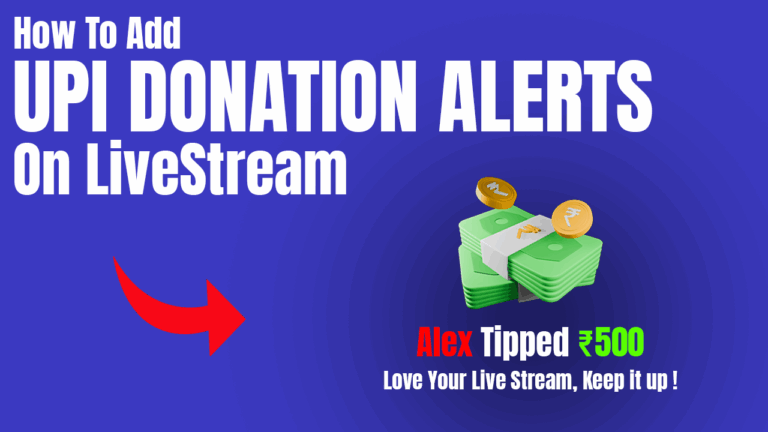
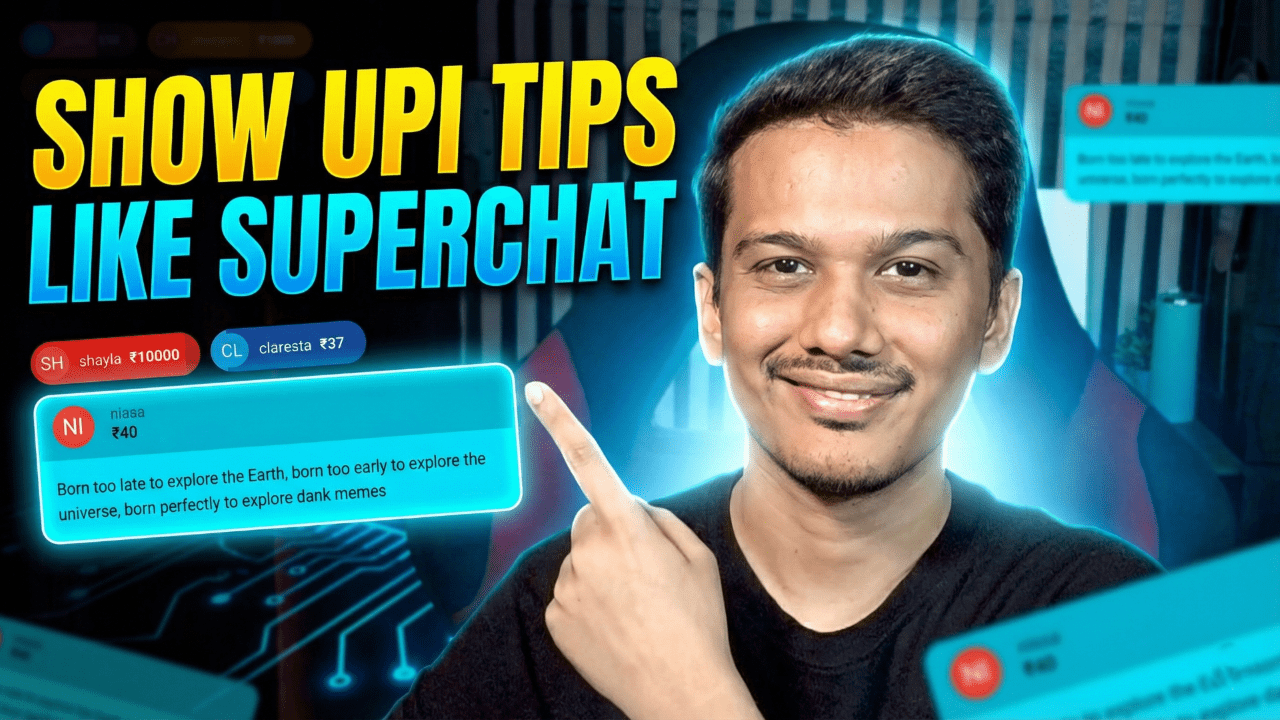
I have developed a custom StreamElements Widget that bridges this gap. Now, when a viewer supports you on StreamTipz, it will appear on your stream in the exact same professional style as a YouTube Super Chat.
Why You Should Use streamtipz.in/?
If you aren’t using StreamTipz yet, here is why you should switch:
- Higher Earnings: You retain 92% of every tip.
- Daily Payouts: No waiting for monthly cycles. Earnings are sent to your UPI automatically every day.
- Privacy First: Your personal phone number or UPI ID is never exposed to viewers.
- Seamless Integration: It connects perfectly with StreamElements (which powers this new widget!).
Features of This Custom Alert Box
This widget is fully coded to make your StreamTipz alerts look indistinguishable from native YouTube features.
1. Unified Professional Look
Imagine a viewer sends you ₹100 via StreamTipz. Instead of a generic alert, a beautiful Green Super Chat Card slides onto your screen. It displays their name, amount, and message exactly like a YouTube Super Chat.
2. Smart Currency Logic
The widget is intelligent. It detects the value of the tip and assigns the correct “Super Chat Color” automatically:
- ₹40 Tip: Blue Card
- ₹100 Tip: Green Card
- ₹200 Tip: Yellow Card
- ₹2000+ Tip: Red Card(It even handles currency conversion logic internally if you receive international support!)
3. The “Sticky Pill” Animation
To keep your stream clean:
- The Card: A large alert appears so chat can read the message.
- The Timer: A progress bar shrinks based on the tip amount.
- The Pill: The card transforms into a small, compact “Ticker Pill” that stays on screen, stacking with other recent tips.
4. “Blast” Exit Animation
When the alert is done, it doesn’t just fade out—it explodes into a burst of particles for a premium feel.
Video Tutorial & Demo
Want to see the “Particle Blast” animation in action? Watch my full setup guide here:
Installation Guide (The “Two-Widget” Pro Method)
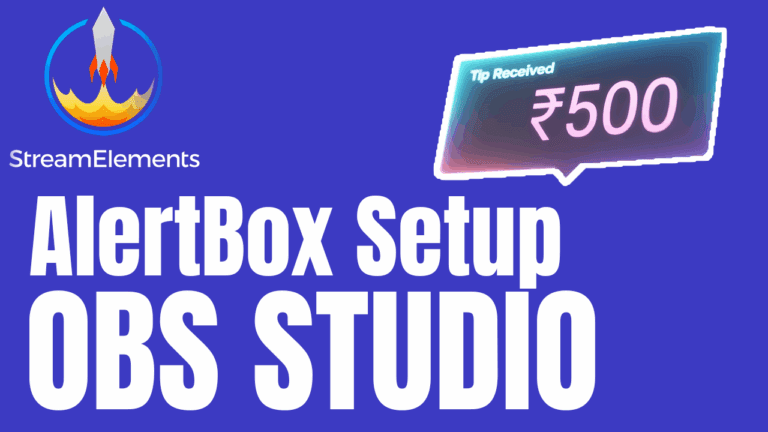
To get perfect visuals alongside 100% reliable Text-To-Speech (TTS), we use an industry-standard trick: We will use one widget for the Visuals, and the native StreamElements AlertBox strictly for the Audio.
Prerequisites:
- A streamtipz.in/ account connected to your StreamElements.
- OBS Studio.
Phase 1: Setup The Visuals (Custom Widget)
Step 1: Create the Overlay
- Log in to your StreamElements Dashboard.
- Go to Streaming Tools -> Overlays -> New Overlay.
- Set resolution to 1080p and click Start.
- Click Add Widget (+) -> Static/Custom -> Custom Widget.(Note: You can resize the widget box on the canvas according to your needs).
Step 2: Paste the Code
Click on the empty box to open the Code Editor (on the left). You will see four tabs: HTML, CSS, JS, and Fields. You need to replace the default code in all four tabs with my custom script.
👉 LINK TO COPY THE CODE – CLICK HERE 👈
Password to open this file: “EXPOSUREEE”
- HTML Tab: Paste the HTML code.
- CSS Tab: Paste the CSS code.
- JS Tab: Paste the Javascript code.
- Fields Tab: Paste the JSON settings code.
- Click “Save” immediately after pasting.
Step 3: Customize Visual Settings
Click on the widget again and go to the “Settings” tab on the left.
- Enable/Disable: Toggle “Show Tips” to ON so your StreamTipz alerts show up.
- Timers: Set exactly how long a ₹100 tip stays on screen versus a ₹5000 tip.
Phase 2: Setup the Audio & TTS (Default AlertBox)
Because browsers sometimes block custom audio scripts, we will use the native StreamElements AlertBox to handle our Sound and TTS perfectly.
- In the same overlay, click Add Widget (+) -> Alerts -> AlertBox.
- Click the Settings (Cog Icon) next to Tips (and Super Chats if you want).
- Hide the Visuals: * Delete the Image/Video by clicking on (X) icon.
- Add Sound & TTS:
- Upload your custom Alert Sound.
- Scroll down to TTS Settings, enable it, and pick your favorite voice!
- Move this Alert Box out of the visible canvas, so that it will not show the alert text on screen but TTS and Alert Sound will work.
- Save the Overlay.
Repeat Above Steps For Superchat Settings (Cog Icon) also..
Phase 3: Add to OBS
- Copy the Overlay URL from StreamElements.
- Open OBS Studio -> Add Source -> Browser.
- Paste the URL.
- Set Height=1920 , Width=1080
- Click Save
Final Thoughts
By combining streamtipz.in/ for daily payouts and higher earnings, along with this Custom Widget for a premium look, you get the best of both worlds.
If you found this code helpful, please subscribe to my channel EXPOSUREEE and drop a comment below!
Happy Streaming!