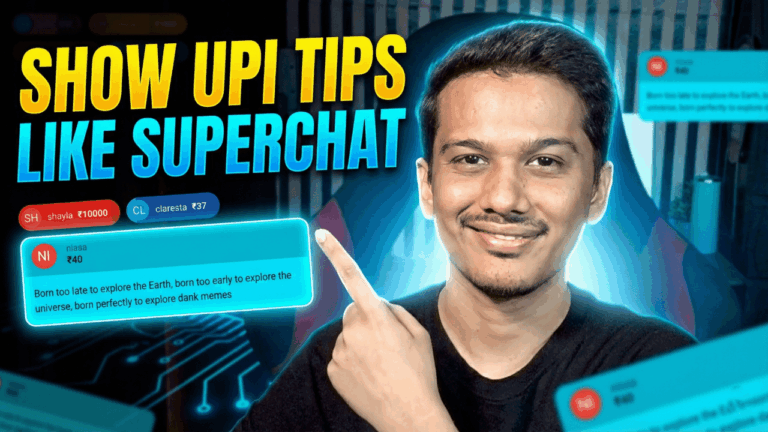
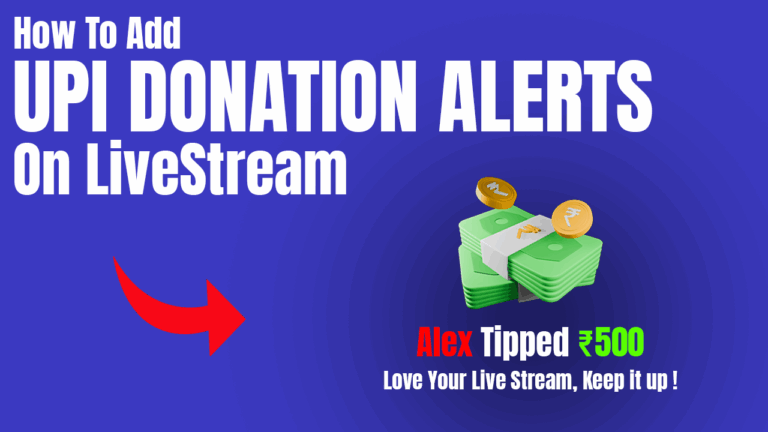
If you’re a streamer looking to level up your stream with dynamic follower, subscriber, tip, or cheer alerts — StreamElements AlertBox is your best friend. This guide walks you step-by-step through how to add the AlertBox into OBS Studio, the most popular free broadcasting software.
🧰 What You’ll Need
-
A StreamElements account (connected to your Twitch, YouTube, or Facebook)
-
OBS Studio installed on your PC or Mac
-
A stable internet connection
🔗 Step 1: Log In to StreamElements
-
Go to https://streamelements.com.
-
Click “Login” and sign in using your Twitch, YouTube, or Facebook account.
-
StreamElements will automatically create a dashboard for your channel.
🎨 Step 2: Set Up Your AlertBox Widget
-
Once logged in, go to the “Streaming Tools” → “Overlays” section.
-
Click “Create Blank Overlay”.
-
Choose your stream resolution (most common is 1080p or 720p).
-
In the overlay editor, click the “+” icon, then choose “AlertBox”.
-
Customize your alerts for:
-
Follows
-
Subscriptions
-
Tips/Donations
-
Cheers
-
Raids
-
-
You can edit images, sounds, text animations, and layout.
-
After customization, click “Save” in the top-right corner.
🔗 Step 3: Copy Your Overlay URL
-
From the overlay editor, click “Launch Overlay”.
-
A new tab will open — copy the URL from the address bar.
Example:https://streamelements.com/overlay/5fae1234abcd5678abcd1234
🖥 Step 4: Add the AlertBox in OBS Studio
-
Open OBS Studio.
-
In the “Sources” panel, click the “+” icon.
-
Choose “Browser”.
-
Name it something like
StreamElements AlertBoxand click OK. -
Paste the copied overlay URL into the URL field.
-
Set the width and height to 1920×1080 (or your chosen resolution).
-
Click OK.
✅ Step 5: Test Your Alerts
-
Go back to StreamElements → “My Overlays”.
-
Find your overlay and click “Edit”.
-
In the editor, click the “Emulate” (⚙️ gear icon) at the bottom-right.
-
Choose the alert type you want to test (e.g., “Follower Alert”).
-
If set up correctly, you’ll see the test alert pop up in OBS Studio.
💡 Pro Tips
-
Position your AlertBox using the red bounding box in OBS.
-
Use transparent WebM or GIF animations for cleaner alerts.
-
Set up a “Scene Collection” in OBS just for testing overlays.
-
Add multiple StreamElements widgets to the same overlay for better performance.
🚨 Troubleshooting
-
🔇 No sound? Ensure browser source audio is enabled in OBS:
Right-click the browser source → Properties → Check “Control Audio via OBS”. -
❌ No alerts showing? Double-check the overlay URL and scene visibility.
-
⏳ Delayed alerts? Might be due to slow internet or server load—refresh OBS and try again.
🏁 Conclusion
And that’s it! 🎉 You now have a fully functional StreamElements AlertBox in OBS Studio, ready to celebrate every follower, tip, or sub in real time. Customize it to match your stream’s branding and give your viewers the recognition they deserve!
If this guide helped you, consider sharing it with a fellow streamer — and keep grinding. Your big moment is just one alert away!
Need help with advanced custom overlays or OBS scenes? Drop your questions in the comments below. 👇
Happy Streaming! 🎥✨